s@tXrkm · Mobile app help
s@tXrkm Mobile online help
A step-by-step guide to signing in to the s@tXrkm mobile app.
Sign in
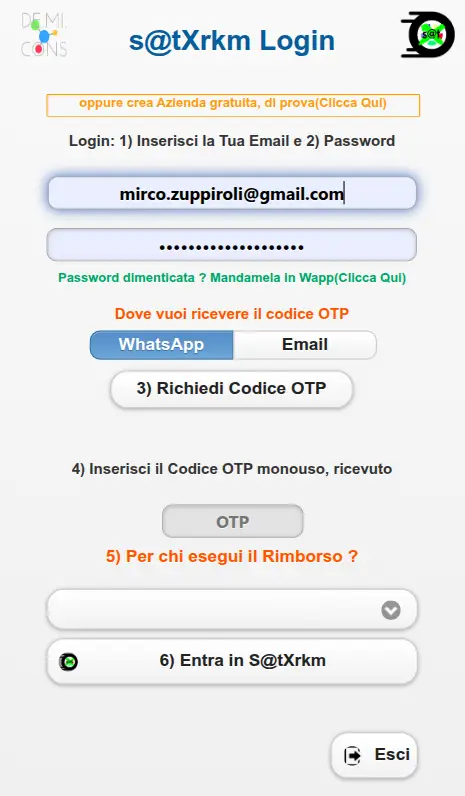
Now let us look at the main points on the screen:
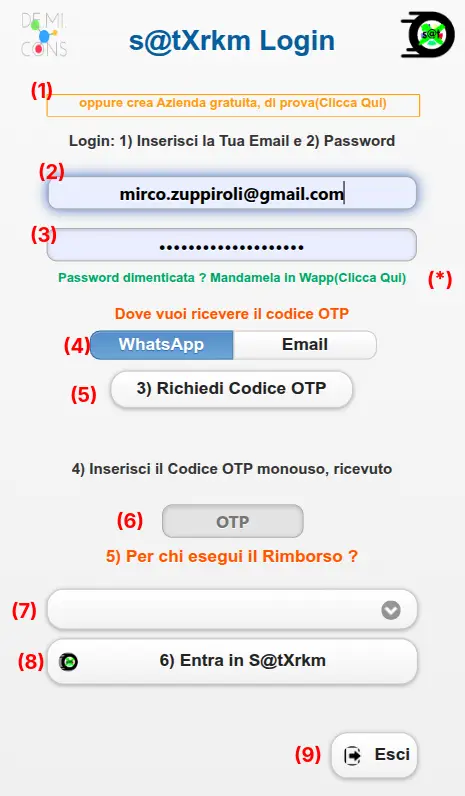
Finally, here is how to use them, step by step:
- This link lets anyone who has not yet tried s@tXrkm activate a trial company, completely free, with no credit card details or payment required.
- Existing users enter their sign-in email address in this field.
- The same applies to the password field.
- There are two ways to receive the OTP code, via WhatsApp or email: select where you would like to receive it.
- Now request the OTP: if your email and password are correct, you will be notified that it has been sent and receive the code within a few seconds.
- Enter or paste the code you received.
- Select the user whose reimbursement you want to prepare (available only to administrators and advanced users).
- Confirm sign-in to open the operating menu.
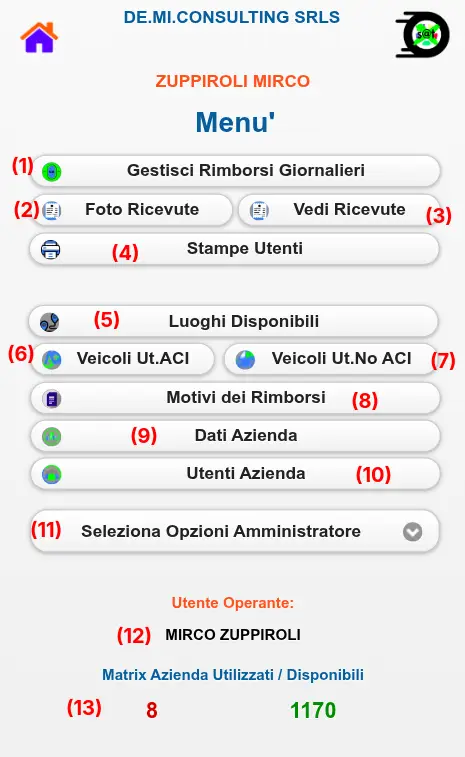
This guide is being updated: more sections are coming.